Thank you for reading our release note. Over the past period we have worked on more clarity and less manual work when booking your containers. HelloContainer now automatically sends the carrier a reminder when a booking confirmation stays out, you see the full voyage of your shipment directly in the sidebar of every order, and we have further improved the NVWA application, the Open Tasks widget and our carrier connections.
Below you will find, per type of user, what is new, what you need to do and what you can expect. Questions or suggestions? Please contact your HelloContainer contact person or support.
What does this mean for you?
User
What is new
What you need to do
Export Booking Module
Automatic reminder e-mail to the carrier for open booking confirmations
Super users can switch the reminder on in MySettings (off by default). Nothing for other users.
Customs / NVWA
Complete address details in the NVWA application
Nothing. Applies to new applications.
Track & Trace and consignees
Consignees can switch between Track & Trace, Documents and Comments again
Nothing.
Dashboard
Description filter in the Open Tasks widget; overview pages load on first use
The filter is optional: set it in the widget settings.
All users
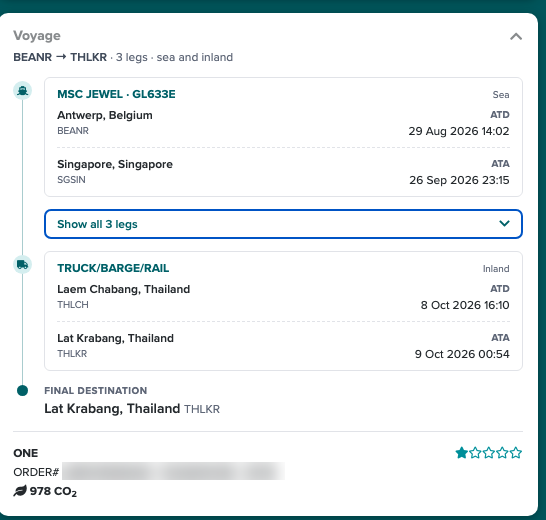
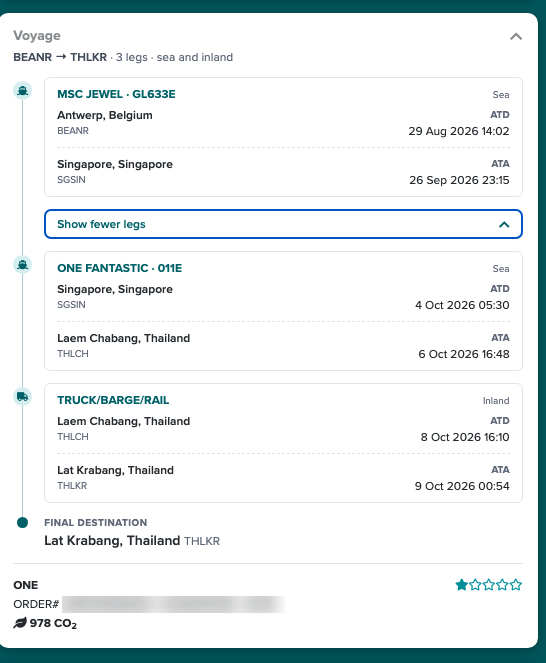
Complete voyage in the order sidebar
Nothing. Use “Show all N legs” to see the transshipments.
Carrier connections
Correct VGM status
Nothing.
Export Booking Module – users
Automatic reminder e-mail to the carrier for open booking confirmations
What it does
When a carrier has not confirmed a booking in time, HelloContainer automatically sends the carrier a reminder e-mail and puts the order on hold with the label “Booking confirmation due”. A reminder is always an e-mail, never an EDI or INTTRA message, also for bookings that were placed via EDI or INTTRA.
What you need to do
A super user switches it on in MySettings, under “Booking confirmation reminder”, and sets the number of hours and the CC recipient (see below). Without this step the order only gets the label and no e-mail is sent. Other users do not need to do anything.
What you can expect
One reminder each time a booking is placed, also after an amendment (the timer restarts). The e-mail goes to the booking e-mail address of the carrier in the carrier settings (without an address the order only gets the label), contains all details of the original booking e-mail and the time the booking was sent, and is sent in CC to the recipient you chose; replies from the carrier go to that same address. The reminder is logged in the order log and the label disappears when the booking is confirmed or cancelled.
Settings for super users in MySettings
A super user has the extra “Super user” role, on top of Standard user or Booking agent, with extended control over the settings of the company. Other users do not see these settings.
Setting
What it does
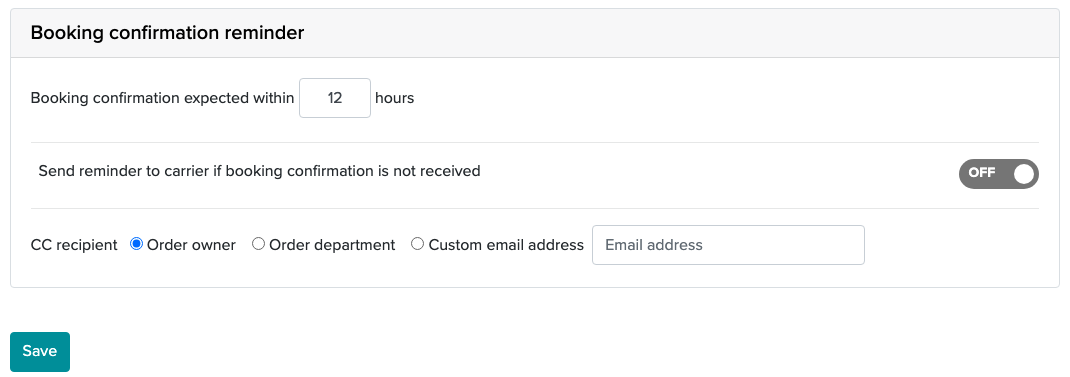
Booking confirmation expected within … hours
After this time the order gets the label “Booking confirmation due” and, if switched on, the carrier gets the reminder e-mail.
Send reminder to carrier if booking confirmation is not received
Switches the reminder e-mail on or off. Off by default.
CC recipient
Order owner, order department or a custom e-mail address.
MySettings: Booking confirmation reminder
Follow open bookings in the Bookings widget
What it does
Shows in the Bookings widget which bookings are still waiting for a confirmation.
What you need to do
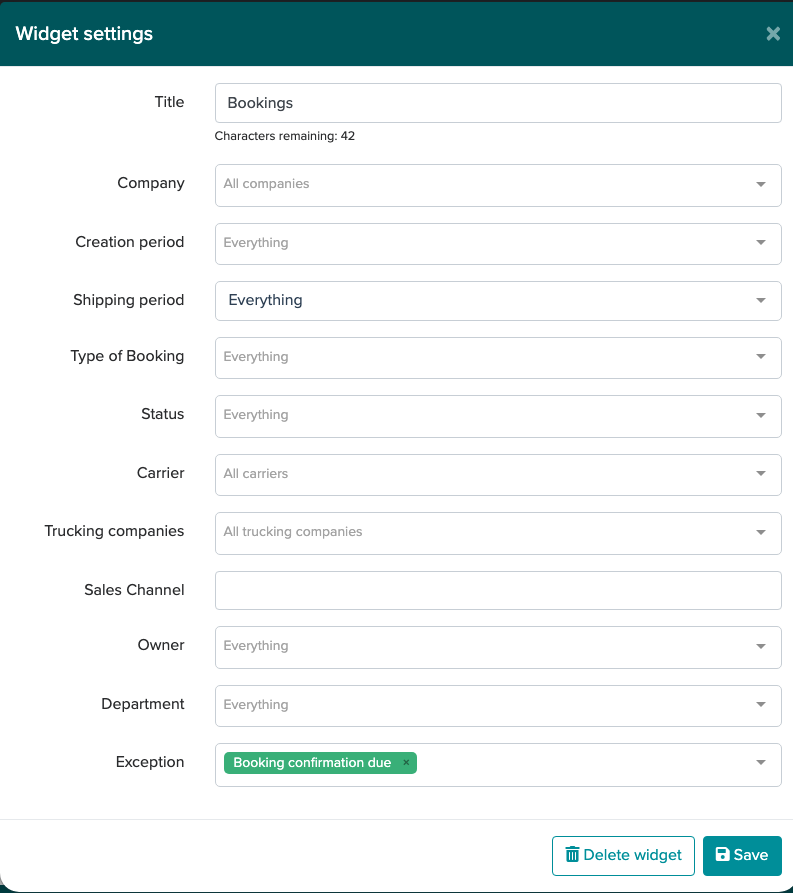
In the widget settings, choose the exception “Booking confirmation due” and add the “On hold status” column to your overview.
What you can expect
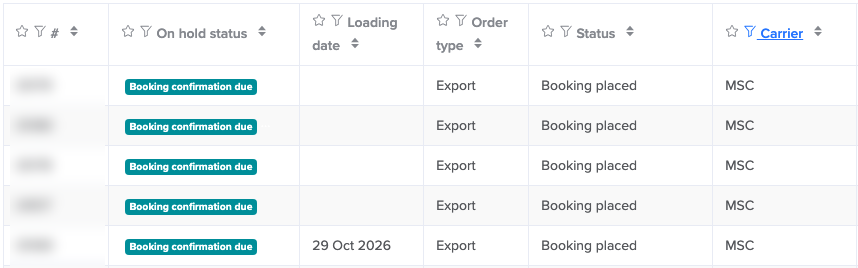
Per order you see the label “Booking confirmation due” as long as the confirmation stays out.
Widget settings: exception filterWidget overview with the On hold status column
Other improvements
Improvement
What changes
What you need to do
Consignee role
Consignees can switch between Track & Trace, Documents and Comments again. Other roles are unchanged.
Nothing.
Customs / NVWA – users
Improvement
What changes
What you need to do
Complete address details in the NVWA application
The second address line, postcode, city and the full country name of exporter and consignee are now included. Applies to new applications; the application screen shows the same address as is sent.
Nothing.
Dashboard – Widgets
Description filter in the Open Tasks widget
What it does
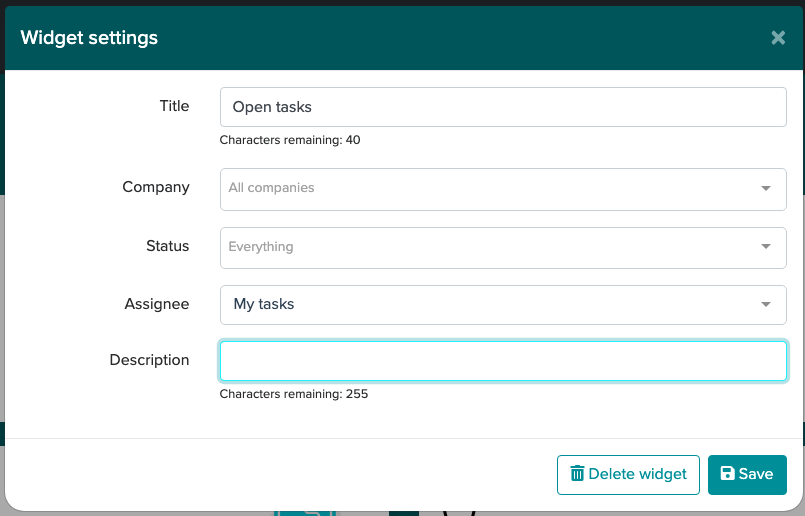
You can filter the Open Tasks widget on part of the task description (not case sensitive).
What you need to do
Optional: enter text in the field “Description” in the widget settings. Leave it empty for no filter.
What you can expect
The widget counts only tasks whose description contains that text. Clicking through to the task list applies the same filter. Each Open Tasks widget keeps its own filter.
Open Tasks widget settings: Description field
Other improvements
Improvement
What changes
What you need to do
Overview page loads on first use
Opening an overview for the first time no longer fails for some customers.
Nothing.
Sidebar optimisation – all users
Complete voyage in the order sidebar
What it does
The sidebar now shows the full voyage in every step, directly under Tasks, instead of only the loading and discharge port.
What you need to do
Nothing. Use “Show all N legs” to see the transshipments.
What you can expect
The header shows the route, the number of legs and the type of transport. Every leg shows departure and arrival location, the vessel and voyage number for sea legs (“Inland” for truck, barge and rail) and the dates, when the carrier provides them. By default the first and last leg are shown and the final destination is always visible. Carrier, order number, stars, CO₂ emissions and incoterm (when available) remain at the bottom. The loading address is no longer shown, because it can differ per container.
Collapsed: first and last leg
Expanded: all legs
Carrier connections
Improvement
What changes
What you need to do
VGM status
The order now moves to VGM confirmed when the last VGM acceptances arrive at the same time.